
How to Assign Singers to Lyrics in a Group Song (Fast)
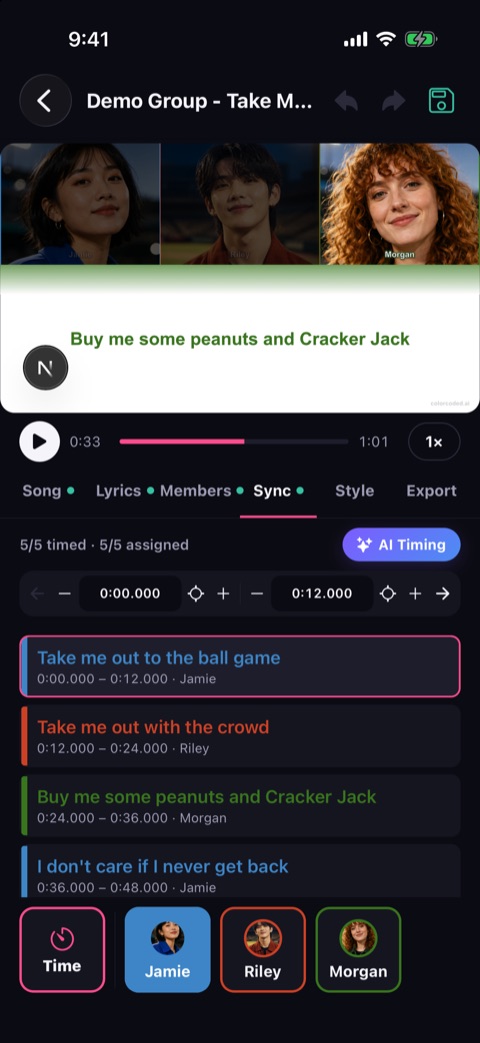
The lyrics are pasted, the timing is done, and the song has five members. Now comes the part nobody enjoys: going down sixty lines and picking who sings each one. In a typical comeback track the voices change every few lines, and every change means stopping, listening, and clicking a name.
The fastest way to assign singers in a group song is to work in parts, not lines: find where the voice changes, name each part once, and only split a part when two singers share it. In ColorCoded AI, AI Timing can now do the first half of that for you. With Group by singer ticked, it listens for where the voice changes and hands you the song already cut into parts, so you name a verse once instead of tapping every line in it.
This guide covers that workflow, how to handle duets and unison lines, and what to do when the AI misses a handoff.
Why line-by-line assignment is slow
Assigning singers is not hard, it is just repetitive. A member usually sings a run of two to six lines before the next one takes over. If you assign line by line, you make the same decision over and over: "still Jamie, still Jamie, still Jamie, now Riley."
Working in parts removes the repeats. A five-member song with sixty lines often has only fifteen to twenty-five real handoffs. That is the number of decisions you actually need to make.
Before you start
- Set up every member first. Add each singer with their color in the Members step. If you have not chosen colors yet, the color coded lyrics palette guide covers readable combinations.
- Break the lines where the singers change. If one line is half Riley and half Morgan, split it in the Lyrics step now. A part can only be assigned as cleanly as its lines are broken. For dense verses, see lyric line breaks for fast rap verses.
- Use headphones. You are listening for changes in voice, which is much easier without a laptop speaker.
Step 1: Run AI Timing with Group by singer
In the web editor, open the Sync step of a song with two or more members. Leave Group by singer ticked and run AI Timing.
AI Timing sets the in and out time for every line as usual. With Group by singer on, it also marks the points where the voice changes and gathers the lines between those points into parts.
If you imported the lyrics from colorcodedlyrics.com, or you already assigned members yourself, Group by singer starts unticked and AI Timing only sets the timing. Your existing assignments are kept, and lines you split between singers are never overwritten.
Step 2: Name each part
When the timing finishes, a Who sings each part? window opens with the first part selected.
- Press Space to play the part. Each line also has its own play button if you only need to hear one.
- Press the member's number (1 to 9) to name the part. The window moves on to the next part.
- Keep going until every part has a singer, then click Assign to color the lines. Skip closes the window and keeps just the timing.
With the number keys, most parts take a second or two: listen to the opening words, press a number, move on.
Notice what the AI does and does not do here. It hears that the voice changed, not whose voice it is. You always choose the member. That is deliberate: the AI does not know your members' voices, and a wrong guess you have to hunt down is slower than a choice you make once.
Step 3: Duets, unison lines, and ad-libs
Group songs are rarely one voice at a time. Here is how to handle the common cases:
| What you hear | What to do |
|---|---|
| Two members singing together | Press the first member's number, then Shift + the second member's number |
| The whole group in unison | Add each member with Shift + number |
| One part that is really two singers | Click split here between the lines where the voice changes |
| Two parts that are really one singer | Merge them |
| A wrong choice | Ctrl + Z (or ⌘ + Z on Mac) undoes it |
For choruses where several members trade short phrases, the shared chorus line distribution guide shows layouts that stay readable when colors change quickly.
Step 4: Check the handoffs the AI can miss
Voice-change detection is good at clear handoffs: a new member starts a verse, a rapper takes over from a vocalist. It is less reliable in a few places:
- Close harmonies, where two similar voices overlap.
- Fast handoffs, where members alternate every half line.
- Members with similar tone, especially in the same vocal range.
- Heavy effects, such as autotune or a filtered pre-chorus.
You do not need to check the whole song. Play the parts in these sections, and use split here when a part contains two voices. A quick pass over the pre-chorus and the bridge catches most misses.
Step 5: Review with the colors on
After you click Assign, play the song in the preview with the colors showing. Wrong assignments are much easier to spot this way. A color that changes in the middle of a phrase, or one that lasts much longer than the vocals, points straight to the line to fix.
To fix a single line in the web editor, go to that line and press the right member's number (1 to 9). In the phone app, the member pads have an Assign only mode that reassigns lines without touching their timing.
Before exporting, run through the lyric video QA checklist to catch timing gaps and colors that are hard to read.
When to skip Group by singer
The feature saves the most time on group songs with clear, frequent handoffs. Skip it, or click Skip in the window to keep just the timing, when:
- The song is a solo. There is nothing to group.
- The lyrics already have members. An import from colorcodedlyrics.com usually arrives assigned.
Frequently asked questions
Does AI Timing know which member is singing? No. It detects where the voice changes and groups the lines between changes. You pick the member for each part, which takes one key press.
Can I use Group by singer in the phone app? Group by singer is in the web editor today. Projects sync between the web and the iPhone and Android apps, so you can name the parts on a laptop and finish the video on your phone.
What happens to lines I already assigned? They stay as they are. If a song already has members on its lines, Group by singer starts unticked, and lines split between singers are never overwritten.
Is AI Timing free? The free plan includes one AI Timing run, and Pro includes AI Timing on every project. You can still assign singers by hand on any plan, with the number keys on the web or the member pads in the app.
Open a group song in the web editor, run AI Timing with Group by singer ticked, and name the first chorus with the number keys. Once you have assigned a song in parts, you will not want to go back to clicking line by line.
Next step
Make a Color Coded Lyrics video
Each member's lines glow in their color, so viewers always know who is singing.
Related posts
More to read
- K-pop Color Coded Lyrics Maker: Build Member-Labeled Videos Faster
A practical workflow for making K-pop color coded lyrics videos with member colors, readable timing, mobile previews, and reusable project structure.
- Lyric Video Brief: What to Prepare Before You Make the Video
A practical lyric video brief template for organizing audio, lyrics, member colors, translations, timing, export formats, and review notes before you edit.
- Lyric Videos for Singing Practice: A Better Way to Rehearse Songs
How singers, teachers, and cover groups can use lyric videos to rehearse faster with clearer timing and less workflow friction.