How to Make a Color Coded Lyric Video on Your Phone
You have the cover recorded, the lyrics in your notes app, and the singers' colors already picked. The only thing missing is a laptop. That used to mean waiting until you got home.
You can make a color coded lyric video entirely on your phone: add the audio, paste the lyrics, set up the members, time each line by holding a member's pad while they sing, pick a style, and render the video on the device. The ColorCoded AI app does this on iPhone and iPad and on Android, with the same steps as the web editor.
This guide walks through each step in the app, with tips for timing on a touch screen and for getting the export onto TikTok, Shorts, Reels, or YouTube.
What you need before you start
- The audio file. MP3, WAV, or M4A, up to 50 MB, saved somewhere your phone's file picker can reach (Files, Downloads, or a cloud drive).
- The lyrics as text. One lyric line per line. If you already know who sings what, you can write
Name: lyricat the start of a line and the app assigns it for you. - The singer list. Names and, ideally, the colors you want. Our guide to a readable color coded lyrics palette helps if you have not chosen yet.
- Headphones. Timing by ear is much easier when you are not hearing the phone speaker through your own taps.
You can build a whole project as a guest. Exporting and AI Timing need an account (sign in with Apple or Google), and anything you made as a guest comes with you when you sign in.
Step 1: Song
Create a new project, type the song title and artist, and tap Choose audio file. Pick the track from your phone. The project is now tied to that audio, so the timing you do later lines up with it.
Step 2: Lyrics
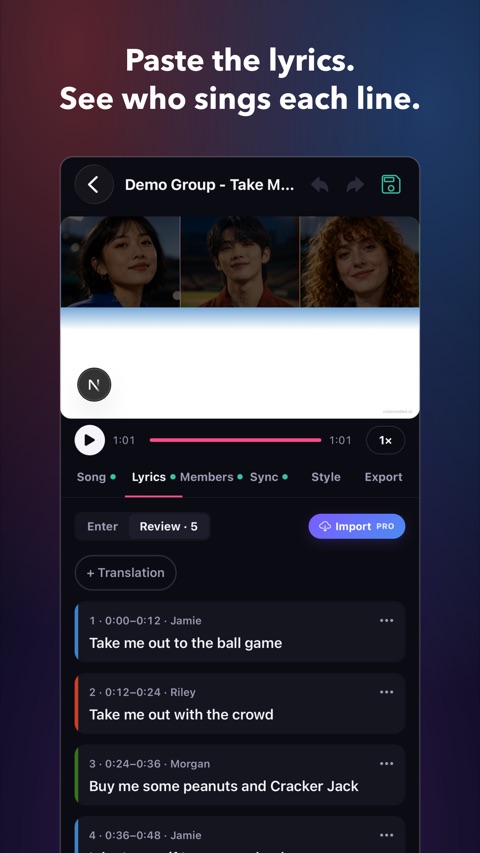
Paste the lyrics into the text box. If the text came from a website or a chat, tap Clean up pasted text to tidy stray spacing, then Review lines to check the result line by line.
A few habits make the next steps faster:
- Keep each line short enough to read on a phone. Long lines that cover two singers are easier to split now than to fix after timing. For dense verses, see lyric line breaks for fast rap verses.
- Lines shared by several singers can be split so each part gets its own color.
- Add a translation under each line if you want a bilingual video. Pro can fill translations with AI; on the free plan you type them yourself. The guide on lyric videos with translations covers layout choices.
Step 3: Members
Add every singer and choose a color for each one. Keep names short; they appear on screen and have to stay readable at phone size. If you used Name: lyric in step 2, those members are already there and their lines are already assigned.
Step 4: Sync — timing on a touch screen
This is the step that feels different on a phone, and it is the one most people worry about. The Sync tab gives each member a pad.
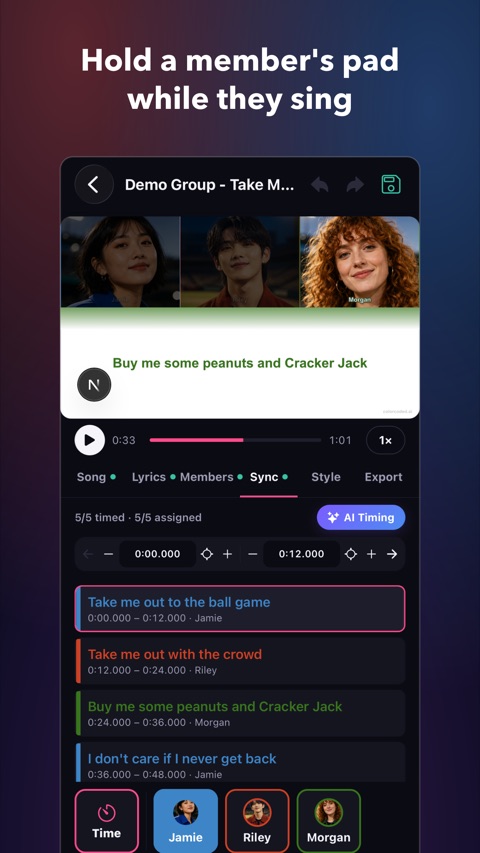
Play the song and hold a member's pad for as long as they sing. Release when they stop. When two people sing together, hold both pads. Each hold becomes the in and out time for that member's part.
Tips that save retakes:
- Do one pass per section, not the whole song. A verse at a time keeps mistakes small.
- Press slightly early. Most people react a fraction late; anticipating the first syllable feels right on playback.
- Leave gaps empty. During an instrumental break, hold nothing. Nobody is highlighted, which is what viewers expect. More on this in instrumental breaks in lyric videos.
- Already timed the lines? Use Assign only to tap singers onto existing lines without changing the timing.
If you would rather not time by hand, tap AI Timing to sync the lyrics to the audio automatically, then correct individual lines. The free plan includes one AI Timing run; Pro includes AI Timing on every project. For a deeper look at manual and automatic approaches, read how to time lyrics to music.
Step 5: Style
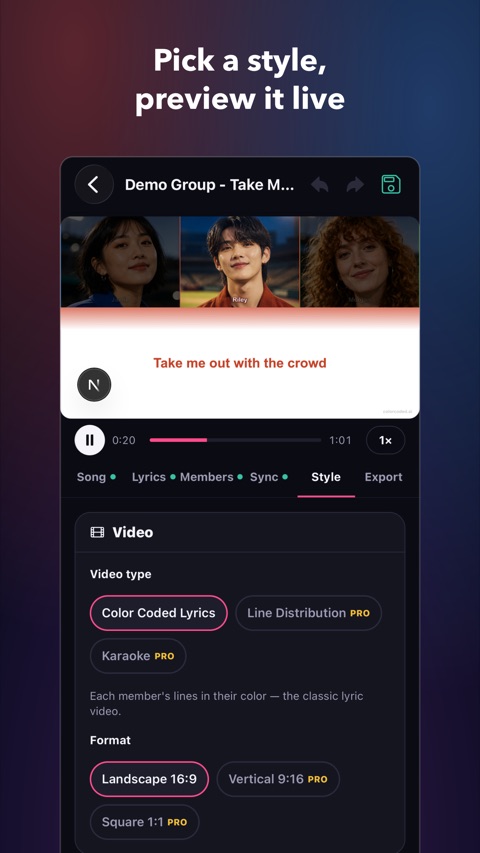
Pick the video type and format, then the look.
| Where it will be posted | Format to choose |
|---|---|
| YouTube, a regular video upload | Landscape 16:9 |
| TikTok, YouTube Shorts, Instagram Reels | Vertical 9:16 |
| Feed posts that crop to a square | Square 1:1 |
The free plan exports the Color Coded Lyrics video type in landscape. Vertical and square formats, plus the Line Distribution and Karaoke video types, need Pro. If you are making a vertical video, the vertical lyric video guide explains how to keep lyrics clear of the platform's on-screen buttons.
Then choose a theme, a font, and a background (an image, a darkened or tinted version of it, a gradient, or plain black). Scrub through the preview at a chorus and a verse to check that names and lyrics stay readable.
Step 6: Export and share
Tap Export video. The app renders the video on your phone, so there is no upload queue and no waiting for a server. Keep the app open while it renders: rendering pauses if you switch away.
When it finishes, tap Save to Photos (iPhone) or Save to Gallery (Android), or Share to send it straight to another app. Free exports are 1080p at 30fps with a watermark; Pro exports at up to 60fps without the watermark.
Before posting, watch the whole export once at normal phone size. The pre-export QA checklist lists what to look for, and the YouTube upload checklist covers titles and descriptions.
Start on the phone, finish anywhere
Your projects sync across the web, iPhone, and Android under one account. A common workflow is to paste lyrics and set up members on a laptop, do the timing on your phone with headphones on the train, and render on whichever device is closest. Pro follows the account too, whether you subscribed on the web, the App Store, or Google Play.
Frequently asked questions
Can I make a color coded lyric video on my phone for free? Yes. The free plan covers the full editor, one AI Timing run, and 1080p exports of the Color Coded Lyrics video type in landscape, with a watermark.
Does the app need an internet connection to render? The video is rendered on your device. You still need a connection to sign in, load your project, and save the finished video to your account.
Can I time a duet or a group song on a touch screen? Yes. Hold one pad per singer, and hold two pads at once when they sing together.
Can I import lyrics from a website in the app? In the app you paste the lyrics as text. Importing from a lyrics URL is available in the web editor.
Download ColorCoded AI from the App Store or Google Play, start a project with one verse, and time it with the member pads. You will know within a few minutes whether phone timing suits you, and the whole song is only a few more passes away.
Next step
Make a Color Coded Lyrics video
Each member's lines glow in their color, so viewers always know who is singing.
Related posts
More to read
- K-pop Color Coded Lyrics Maker: Build Member-Labeled Videos Faster
A practical workflow for making K-pop color coded lyrics videos with member colors, readable timing, mobile previews, and reusable project structure.
- Lyric Video Brief: What to Prepare Before You Make the Video
A practical lyric video brief template for organizing audio, lyrics, member colors, translations, timing, export formats, and review notes before you edit.
- Lyric Videos for Singing Practice: A Better Way to Rehearse Songs
How singers, teachers, and cover groups can use lyric videos to rehearse faster with clearer timing and less workflow friction.